


AI Drawing : Trace & Sketch
4.1207.00 Reviews
App Specs
- Version
- 5.4
- Updated On
- License
- Free
- Downloads
- 5,000,000+
- Developer
- The App Company INC
- Categories
- Art & Design
- Platform
- Android
Screenshots
 Analysis by AppCompare
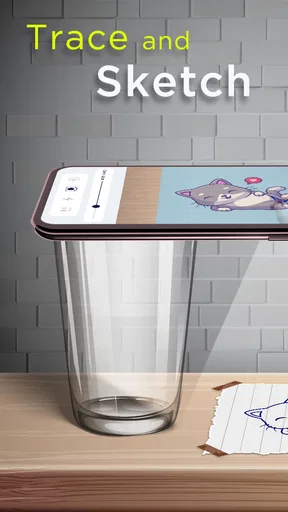
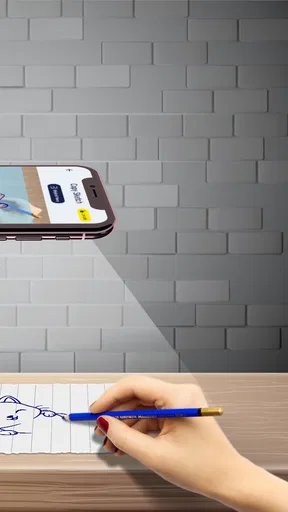
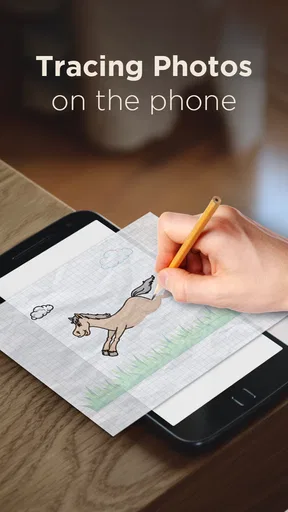
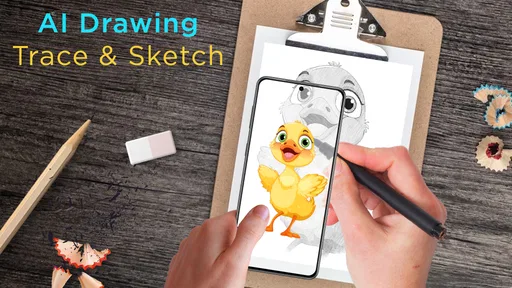
I judge a tracing app less by how quickly it can put a guide on screen than by what happens when the phone is somewhere between a desk and a reliable connection. AI Drawing: Trace & Sketch is an art and design app from The App Company INC that frames drawing as something you can practise with a phone, a paper surface and augmented-reality guidance. That makes it appealing for beginners who want a clear starting point, but it also makes the surrounding setup and the place where you draw part of the experience.
When a connection matters
The app’s central idea is easy to grasp: use a visual guide to help turn a reference into marks on paper. In real use, that kind of workflow can involve several distinct moments—opening the app, choosing what to work from, and getting the guide ready—so I would plan a tracing session when I have a dependable connection rather than assume every step will behave the same way on a weak network. A sketching tool is most useful when it stays out of the way, and interruptions during setup can break concentration before the pencil even touches the page.
That does not make it unsuitable for a commute or a quiet corner away from home. It means I would prepare before leaving: open the app, decide what I want to practise, and check that the drawing view is ready while I still have a stable connection. For a short, spontaneous doodle, a conventional paper sketchbook has the advantage of requiring no app setup at all. For a planned tracing exercise, the guided approach can justify that extra step.
A phone is part of the drawing desk
Because the exercise combines a phone screen with paper, the best place to use it is not necessarily the most comfortable place to browse on a phone. I would set the device where it can stay steady and visible without blocking my hand, then place the sheet so the reference and drawing area are easy to follow. A small change in angle can make a big difference to comfort: if I keep leaning over the phone, I lose the relaxed posture that helps me draw patiently.
This setup is better suited to a table than to drawing while walking, standing in a queue or balancing a phone on my lap. It can work as a low-pressure activity at home, or as a way to keep a child occupied with a simple drawing task at a table, though the adult may need to help arrange the phone and paper first. The age rating is Everyone, and the app is free to try, but that does not remove the practical need for a stable surface and a little space.
A useful habit is to treat each attempt as a short exercise rather than a race to finish a polished picture. Pick one shape or outline to follow, pause to look at the paper instead of staring only at the screen, and compare the result with the guide when you are done. That turns tracing into a way to notice proportion and hand movement, rather than merely copying a contour. If the phone position makes that comparison awkward, adjust the setup before continuing instead of forcing the session.
If the session gets interrupted
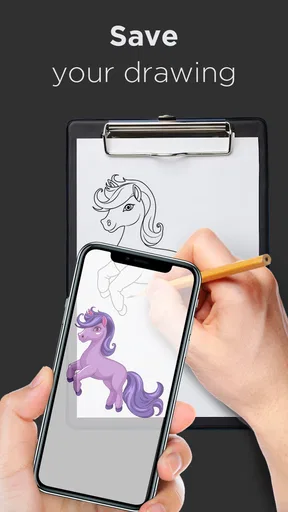
Any phone-based drawing session can be disrupted by a call, a screen change or a connection hiccup. I would save the paper sketch by taking a quick photo when I reach a natural stopping point, then reopen the app and check the setup before resuming. That simple checkpoint matters more here than it does with a notebook: a paper drawing remains in place, but the on-screen guide may no longer be positioned as expected after the phone has been moved or the app has been interrupted.
Worth Reading Before You Choose

EA SPORTS FC Mobile 26 Is a Bigger Football Game, but It Takes Time

Flipboard Shows What News Apps Must Do Beyond the Feed

Switching to Android Auto Means Rethinking Your Driving Routine

Google Calendar Makes a Crowded Week Easier to Manage

Ludo King Makes the Most of the Minutes Between Plans

Baby Panda World Brings Quick Play to Modern Phones, but Its Game Library Feels Busy
If the guide looks misaligned, I would not try to compensate by shifting the paper while drawing. First settle the phone and page, then re-establish the view and begin again from a clean position. It can feel like a small nuisance, but it prevents a bigger one: spending several minutes tracing against a reference that has drifted. For a quick practice session, that reset is manageable; for a detailed illustration, it is a reason to consider a more controlled digital drawing setup.
Choosing what to draw, and how
The app is at its most useful when I have a specific, modest goal: practise a clean curve, get the proportions of a simple object onto paper, or help a beginner make the first marks without the blank page feeling intimidating. The guide gives the hand somewhere to start, while the paper keeps the result physical and easy to share. That combination is different from a standard drawing app, where the finger or stylus works directly on the screen and undo is usually part of the process.
That distinction also defines who may want to skip it. If I want freehand practice without a visual crutch, a plain sketchbook is the better teacher. If I want precise control over brushes, layers and revisions, a full digital art app on a tablet is likely a more natural fit. Tracing can help with confidence and observation, but it does not automatically teach how to invent a pose, build a composition or correct a weak drawing. I would use it as one exercise in a broader routine, not as a substitute for drawing from observation.
For a more deliberate session, I would choose a reference with a clear outline and avoid trying to trace too many details at once. Begin with the broad shape, then add smaller features only if the phone-and-paper arrangement remains comfortable. This is a practical trade-off: intricate references can look tempting, but dense detail makes it harder to see whether the guide is helping with structure or simply encouraging slow copying. A simple subject often gives a more satisfying first result and leaves room to practise line control.
Getting Started with AI Drawing: Trace & Sketch
The first thing I noticed about AI Drawing: Trace & Sketch is how easy it is to get started. Once you download and open the app, you're greeted with a clean and intuitive interface. No need to wade through endless menus or complex settings. It's designed to be user-friendly, which is always a huge plus in my book.
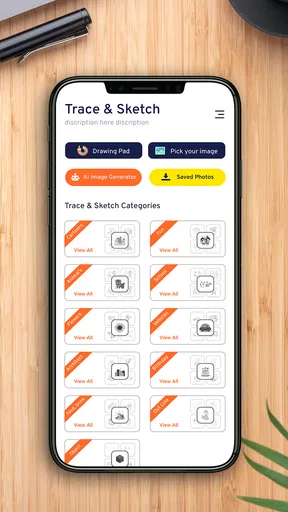
After a quick setup process, you can dive right into your first project. You can choose from a variety of templates or start from scratch. The templates are a great way to practice, especially if you're just starting out. They provide a structured way to learn the basics of drawing by allowing you to trace over existing images.
Features That Stand Out
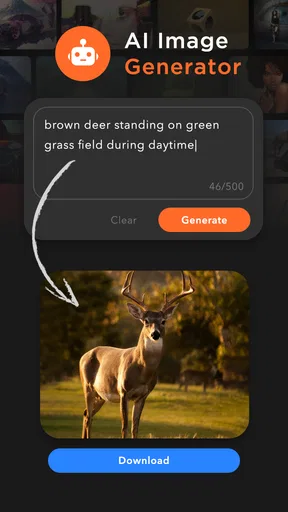
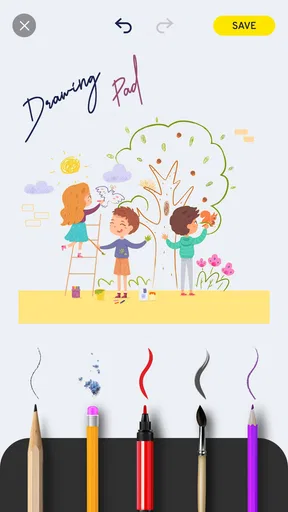
One of the standout features is the AI-assisted tracing. This feature allows you to trace images with the help of AI, which can guide you in creating more accurate and realistic drawings. It's like having an invisible hand helping you along the way. The app also offers a wide range of brushes and tools, giving you the freedom to experiment with different styles and techniques.
Another cool feature is the layer management. If you're familiar with digital art, you know how crucial layers can be. This app handles layers seamlessly, allowing you to work on multiple layers with ease. You can add, delete, and rearrange layers, which is perfect for complex projects.
Enhancing Your Skills
What I particularly love about this app is how it helps in refining your skills. There's a section dedicated to tutorials and exercises that are updated regularly. These tutorials are interactive and cover a wide range of topics, from basic sketching techniques to advanced shading methods. It's like having a personal art instructor available anytime you need.
The app also encourages you to share your work, which is a great way to get feedback and improve. You can join a community of artists, share your creations, and even participate in challenges. It’s a supportive environment that motivates you to keep improving.
Why You Should Try It
In terms of performance, the app runs smoothly on both Android and iOS devices. It doesn't require a powerhouse phone to function, which is a relief for those of us with older models. The app is frequently updated, ensuring that any bugs are quickly squashed and new features are always on the horizon.
What sets AI Drawing: Trace & Sketch apart is its ability to blend technology with creativity. It's not just about creating art; it's about learning and growing as an artist. The AI features are a bonus that enhance the learning experience, making it more engaging and rewarding.
The practical trade-off is that an app built around guided drawing asks for a little more attention to setup than a blank sheet does. I would not choose it when I need to sketch quickly in a cramped place, or when I want complete freedom to redraw every line digitally. I would reach for it when I want a prompt, a visible structure and a reason to practise with pencil and paper. That is a narrower purpose than a full art studio, but it can be a useful one.
There are also a few sensible questions to consider before making it part of a routine. Is it only for beginners? I think beginners are the clearest fit, but anyone who wants a guided warm-up or a tracing exercise could find a use for it. Does it replace a tablet drawing app? Not for someone whose main goal is detailed digital editing. Is it free? The app is free, with optional in-app purchases priced from $3.99 to $7.99 per item, so I would explore the basic experience before deciding whether to spend. Its content rating is Everyone, and it has an average rating of 4.0 from around 8.3 thousand ratings, with over 5 million installs.
For anyone mindful of data use, I would avoid assuming that every part of the experience works without a connection. The app’s drawing concept can be prepared at home before a session elsewhere, which is a straightforward way to reduce uncertainty and avoid relying on network access at the moment you want to start. I would also be selective about sharing: post a drawing when feedback would genuinely help, rather than treating every exercise as something that needs to be uploaded. That keeps the focus on practice and makes the social side optional rather than a condition of using the app.
The app is free, currently at version 5.2, and was released on August 17, 2023. It supports devices running operating system version 7.0 or later. Those details make it accessible to a broad range of users, but I would still judge the experience by the actual phone and drawing space available: a compatible device cannot make an unstable stand or an awkward table comfortable. Before a longer session, I would test the setup with a simple template and see whether the screen stays easy to follow from the position where I naturally draw.
In conclusion, if you're looking for an app that can help you develop your artistic skills while having fun, AI Drawing: Trace & Sketch is definitely worth a try. It's packed with features that cater to both beginners and experienced artists, making it a versatile tool for anyone interested in art. So why not give it a shot? You might just discover a hidden talent!
My connectivity verdict
My recommendation depends less on how often you draw than on how you like to draw. If you enjoy paper, want a guided way past the blank-page problem and can set your phone up before beginning, this app offers a distinctive bridge between screen-based help and a physical sketch. If you expect a self-contained digital studio, instant setup in any location or uninterrupted use regardless of network conditions, I would choose a different tool. For a planned practice session at a table, though, the tracing approach is approachable—and a little preparation can keep the phone from becoming the most distracting part of the drawing.
Pros
- Easy to use interface for beginners.
- Offers a wide range of drawing tools.
- Supports high-resolution exports.
- Includes helpful tutorials and tips.
- Works offline without internet.
Cons
- Limited free features available.
- Occasional lag on older devices.
- Ads can be intrusive at times.
- Subscription required for full access.
- No support for vector graphics.
FAQs for AI Drawing : Trace & Sketch
What features does AI Drawing: Trace & Sketch offer?
AI Drawing: Trace & Sketch provides a range of features including AI-assisted tracing, a variety of sketching tools, and customizable templates. Users can upload images to trace over with precision. The app also offers layers and a color palette to enhance creativity, making it suitable for both beginners and experienced artists.
Is AI Drawing: Trace & Sketch suitable for beginners?
Yes, AI Drawing: Trace & Sketch is designed to be user-friendly for beginners. It includes intuitive tools and guided tutorials to help new users get started. The AI assistance simplifies the drawing process by providing suggestions and corrections, making it easy for anyone to create impressive sketches.
Does the app require an internet connection to function?
AI Drawing: Trace & Sketch primarily works offline, allowing users to draw and sketch without needing an internet connection. However, some advanced features, like cloud storage and sharing sketches on social media, require online access. This ensures flexibility while keeping core functionalities available offline.
Are there any in-app purchases or subscriptions?
While AI Drawing: Trace & Sketch is free to download with basic features, it offers in-app purchases for advanced tools and features. There might be a subscription model for premium content, such as exclusive templates and brushes. Users can choose to purchase these to enhance their drawing experience.
What platforms is AI Drawing: Trace & Sketch available on?
AI Drawing: Trace & Sketch is available on both Android and iOS platforms. Users can download the app from the Google Play Store for Android devices and the Apple App Store for iOS devices, ensuring compatibility with a wide range of smartphones and tablets.


